You asked Claude Code to clean up one file, and it rewrote three more. Maybe it deleted something. It's a disaster. But it doesn't have to be. Here are three guardrails that stop Claude Code from breaking your project—and none require coding skills.
The fix: three plain-English guardrails stop Claude Code from breaking your project.
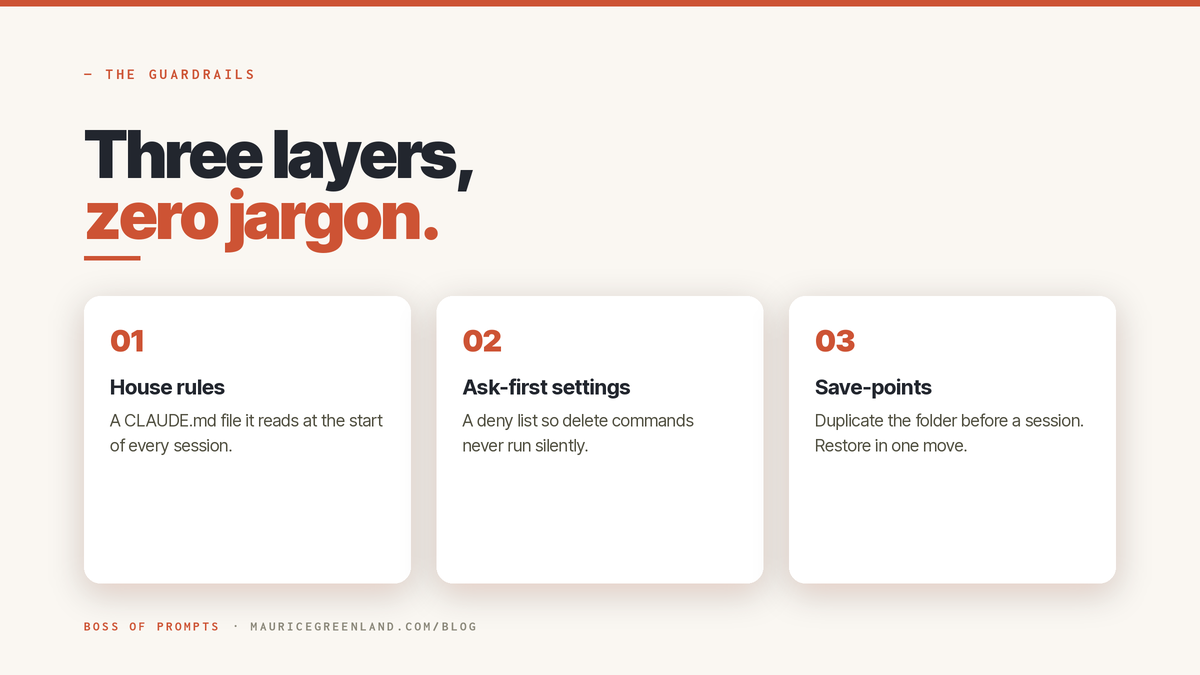
House rules are read before every session, settings that make it ask first, and save points you can restore.
No coding skills needed for any of them.
This post walks you through all three layers, click by click, with nothing to install and no jargon walls.
The "Claude Code deleted my files" stories are real. So read this and don't be one of the horror stories in the future.
When Claude Code Deletes Your Files
The horror stories are documented, not rumors. In one documented GitHub issue, Claude Code ran a delete command that hit the user's home folder. Not the project. The home folder.
A safety guide written for developers puts the underlying problem in one line: "every layer in this guide is opt-in… The defaults will not save you."
Claude Code asks permission for plenty. But one "yes to everything" click, plus one vague instruction like "clean this up", and it can end up deciding for itself what cleaning up means.
Developers have answers. Detailed ones, with pre-commit hooks and permission JSON and test gates. If you can read those guides, use them.
If they may as well be in Latin, stay here.
The three layers below do the protective part of the same job, without the jargon.
How to Stop Claude Code Breaking Your Project
Three layers. A rules file, a settings check, a save-point habit. Layers 2 and 3 hold on their own. Layer 1 is guidance, not a lock.
Claude Code reads your rules, but only Layer 2's settings are enforced.
That is exactly why there are three.
Together they cover before, during, and after a session. Set them up in order.
Layer 1: House Rules in a CLAUDE.md
CLAUDE.md is a plain text file that lives in your project folder.
Claude Code reads it at the start of every session and treats it as standing instructions. That makes it the cheapest guardrail you'll ever set: write the rules once, they apply every time.
Step 1: Create the file.
In your project folder, make a new text file named exactly `CLAUDE.md`, capitals included.
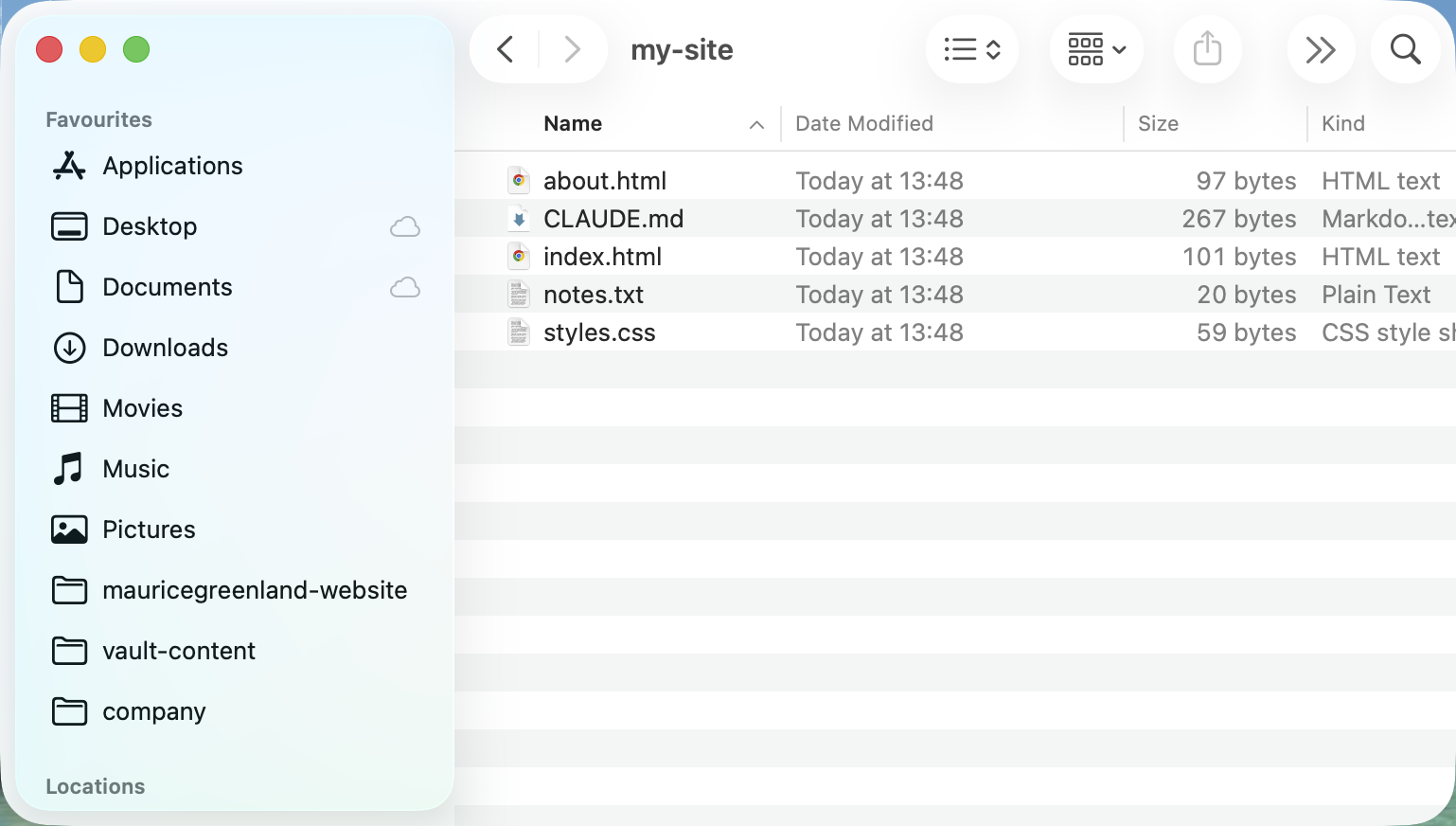
You should now have an empty CLAUDE.md sitting next to your working files. Check: confirm it didn't save as CLAUDE.md.txt. If it did, rename it and remove the .txt.
Step 2: Paste the house rules.
Open the file and paste this:
The Rules
You should now have a rules file Claude Code will pick up automatically. Check: close and reopen the file once to confirm the text saved.
Step 3: Make it recite the rules.
Start Claude Code in that project and ask: "What rules apply in this project?"
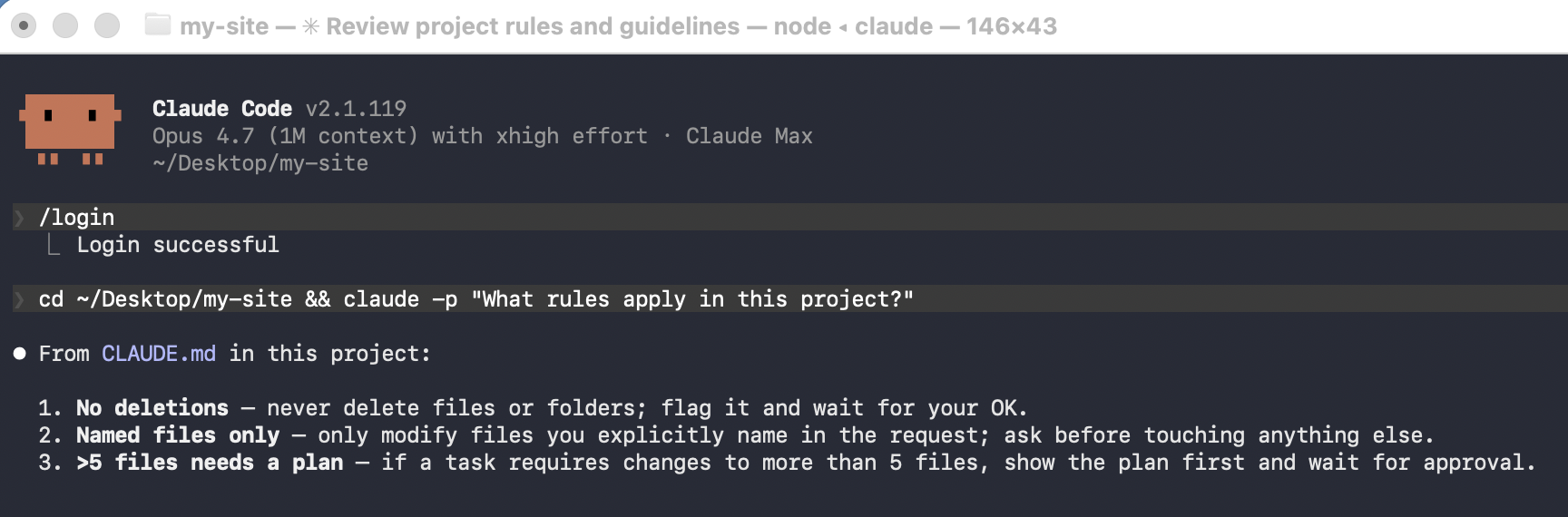
You should see your three rules echoed back in its answer. Check: if it doesn't mention them, the file is in the wrong place. It belongs at the top level of the project folder, or inside a .claude folder there; it just can't be buried in some other subfolder.
Layer 2: Change These Claude Code Settings
Claude Code's permission settings decide what it may do without asking you. Two checks before it goes near real work.
Step 1: Open your permission rules.
Inside a Claude Code session, type `/permissions` and press Enter.
This is the control that sets standing rules about what Claude Code may do without asking you.
You should now see your current permission rules. Check: if nothing happens, you're not inside a session — start one in your project first.
If your version doesn't show this, the same rules live in a file: see Step 2's fallback.
Step 2: Block delete commands.
Add a deny rule for the standard delete command.
The rule is written like this: `Bash(rm:*)`
If your version writes rules to a file instead of a screen, create `.claude/settings.json` in your project folder and paste:
{ "permissions": { "deny": ["Bash(rm:*)"] } }Either route gets you the same rule.
That one line means: never run `rm`, the standard delete command. It won't catch every trick a script can pull, which is why Layer 3 exists.
You should now have a rule that blocks the delete command, whichever route you took.
Check: ask Claude Code to delete a scrap test file. It should refuse and point at the rule.
Step 3: Keep "ask first" switched on.
Whenever Claude Code offers a "don't ask again" style shortcut, decline it while you're learning. Each yes widens what it can do silently.
You should still get a prompt before edits happen.
Check: ask for one small edit. A permission prompt should appear before the file changes.
Layer 3: Save-Points You Can Restore
A save-point is a copy of your project made before Claude Code touches it.
If a session goes wrong, you put files back instead of mourning them. No git, no version-control homework.
A folder copy does the job.
Step 1: Duplicate the project folder.
In Finder, click the folder once and press Cmd+D. On Windows, right-click it, Copy, then Paste.
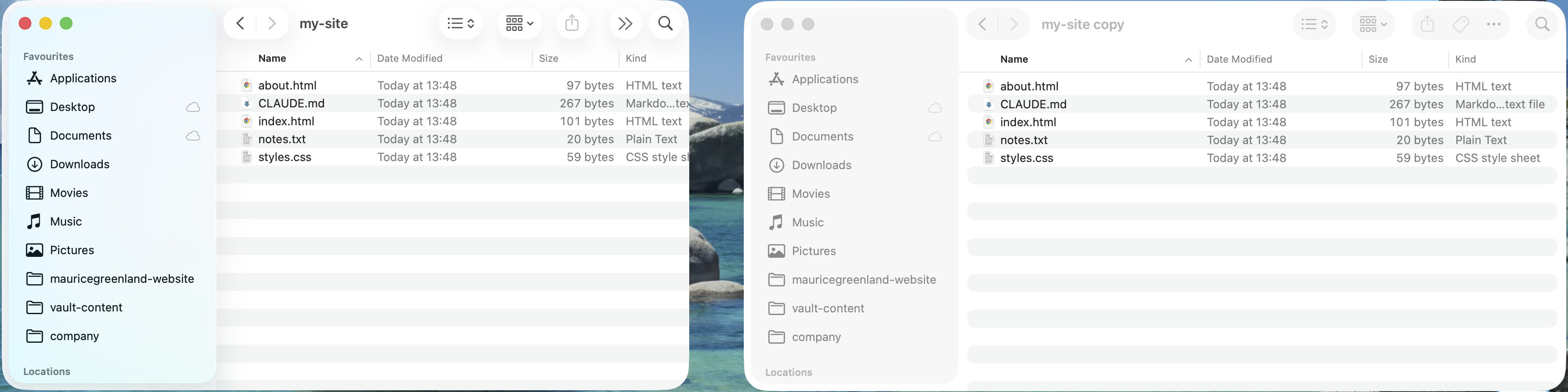
You should now have an identical copy next to the original. Check: open the copy and spot-check that your key files are in it.
Step 2: Name it so future-you understands.
Rename the copy with BACKUP and today's date, like `my-site BACKUP 22 Jul`.
You should now be able to tell the two apart at a glance.
Claude Code only ever works in the one without BACKUP in the name.
Check: read the two names from across the room. If you'd hesitate, rename again.
Step 3: Practice one restore, now.
Copy a single file from the backup into the project folder and choose Replace when asked. You should see the original version land back in place.
Check: do this once while nothing is broken. The first real restore shouldn't also be your first attempt.
Make a fresh save-point before any big session.
Delete stale backups when the folder gets crowded; they're spare copies, not archives.

Read next
9 Best Prompt Engineering Tools for Beginners in 2026 (No Coding Needed).
The 9 best prompt engineering tools for beginners in 2026 — no coding needed. Test, improve, find, and learn prompts with these free, easy-to-use AI tools.
If Claude Code Already Broke Something
Stop prompting. The instinct is to type "fix it", and every new prompt is more file changes you're not watching. Close the loop first.
Step 1: End the session.
Quit or close the Claude Code window before anything else. You should now have files that stop changing. Check: the session is gone, not minimized.
Step 2: List the damage yourself.
Open the project and note which files are wrong, missing, or unfamiliar. Don't ask Claude to assess its own mess yet. You should have a short written list. Check: each entry names an actual file, not a feeling.
Step 3: Restore from your save-point.
Copy the good versions back from the BACKUP folder, replacing the broken ones, exactly as you practiced in Layer 3.
You should have the project back to its pre-session state.
Check: open the restored files and read them.
No save-point? Open your Trash or Recycle Bin and look before doing anything else, then set up Layer 3 before the next session.
The Claude Code Setup Kit's Guardian skill is designed to run this playbook for you.
Say "set up my guardrails" once, "start my session" at the start of each one, and "it broke — undo this" when something goes wrong.
Same three layers, automated.
What to Set up First
Three guardrails: house rules in a CLAUDE.md, settings that make Claude Code ask first, and a save-point before every session.
Why bother today rather than someday: the gap between a horror story and a mild annoyance is usually one settings screen and a spare copy of a folder. Ten minutes, once.
Start with Layer 3, it's two clicks. Then grab the free CLAUDE.md Starter from the library for your Layer 1, and when you want the whole setup done for you, the Claude Code Setup Kit is on the site, redeemable with a license key.
Stop Claude Code from Breaking Your Project: Summary
So now you know how to stop Claude Code from wrecking your project. Set up three guardrails; it doesn't take long and will give you peace of mind.
One: Write plain-English rules—what Claude can touch, what it can't.
Two: Lock down your settings so it asks before deleting or overwriting.
Three: Make save points before every run, so one bad move never costs you your work.
No coding needed. Just three simple habits.
The Bottom Line: Rules, settings, save points. Set them once. Ship without fear.
FAQ
Can Claude Code Delete Files Without Asking?
Yes, it has happened. A documented GitHub issue describes a delete command reaching a user's home folder. Permissions decide how much it can do silently, which is why Layer 2's deny rule and ask-first check exist.
What Stops Claude Code from Breaking Projects?
Three plain-English guardrails: a CLAUDE.md rules file it reads every session, permission settings that block deletes and make it ask first, and a save-point copy of your project you can restore. Layers 2 and 3 hold on their own. Layer 1 is guidance, not a lock. Claude Code reads your rules, but only Layer 2's settings are enforced. Together they cover before, during, and after.
Do Claude Code Guardrails Need Coding Skills?
No. Claude Code guardrails at this level are a text file, one settings screen, and a folder copy. The hook-and-script versions developers use do more, but none of them are required to work safely.
How Do I Undo Something Claude Code Did?
End the session first, so nothing else changes. Then copy the good versions of your files back from your BACKUP folder, replacing the broken ones. If you have no backup, check the Trash before anything else, then make save-points standard from now on.