1What you get
Installed capabilities
- Audits every piece of your Claude Code folder
- Recommends the next three pieces to add
- Builds each piece after showing you the file
- Tests hooks before calling them done
2The skill itself
The full SKILL.md
3Install it
Add it to Claude
- 1
Download the file
Click Download above. Leave it zipped — Claude wants it exactly as it downloaded.
- 2
Open your settings
Your name in the bottom-left, then Settings → Skills (under Capabilities on older versions).
- 3
Add the skill
Click “Add skill” and choose the file you just downloaded.
- 4
Switch it on
Turn on the toggle next to it. That's it — nothing to set up.
Never installed a skill before? Follow the walkthrough below — the same steps, one click at a time, with pictures.
4Install walkthrough
Step by step, with pictures
First time installing a skill? Follow these in order. It's all clicking — about one minute.
- 1
Download the file
Scroll up and click the rust Download .zip button. Leave it zipped — Claude wants the
.zipexactly as it downloaded.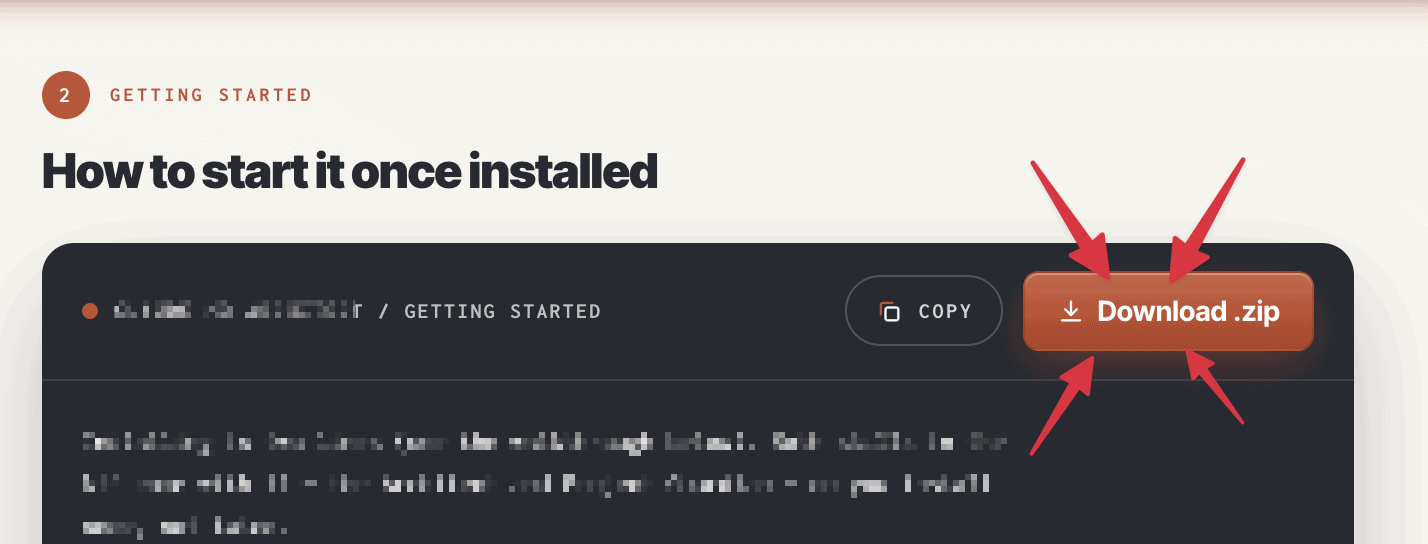
- 2
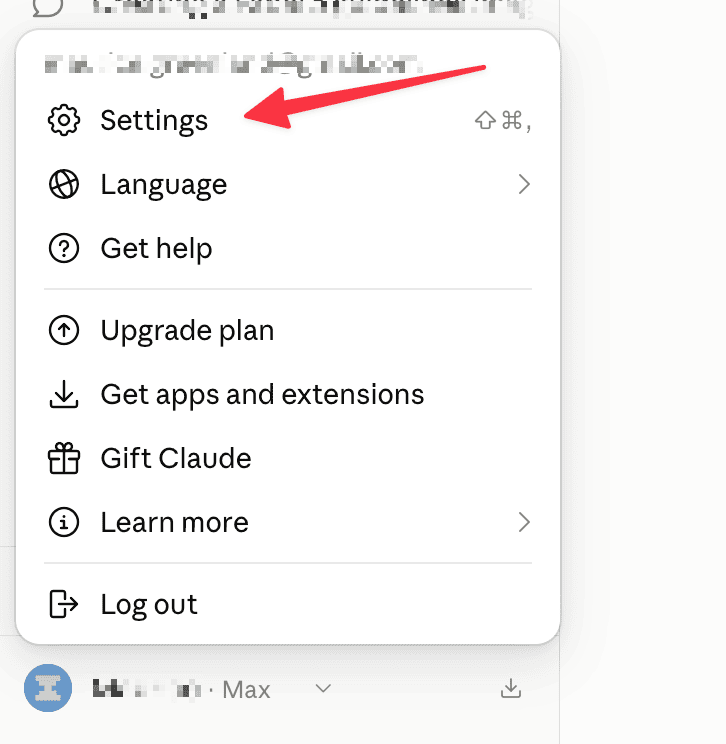
Open your settings
Go to claude.ai and click your name in the bottom-left corner, then Settings.
- 3
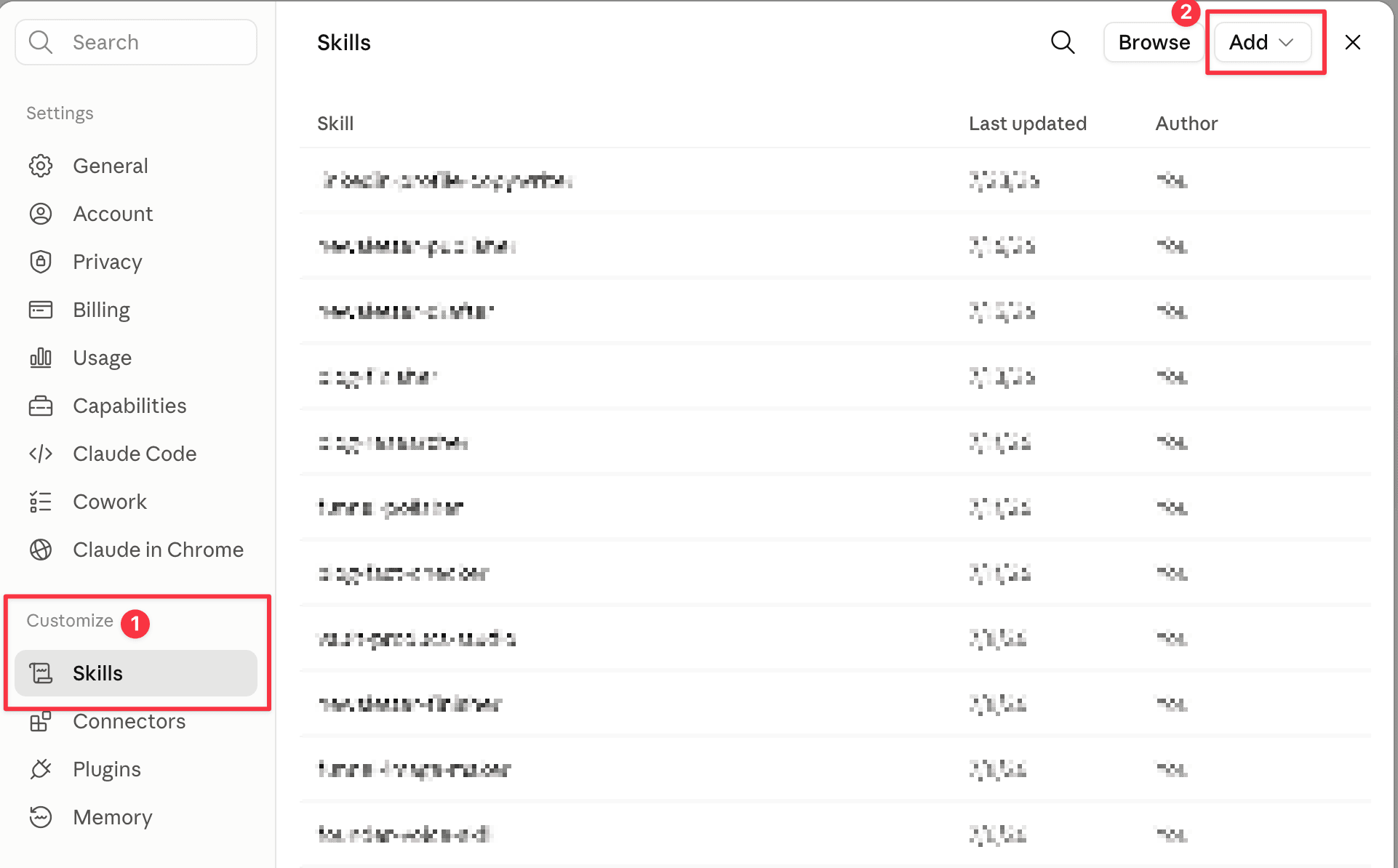
Find Skills
In Settings, open Skills. It sits under Customize in the left sidebar — on older versions it's under Capabilities.
- 4
Upload the file
Click Add in the top right, choose Upload a skill, then pick the
.zipfrom your Downloads folder.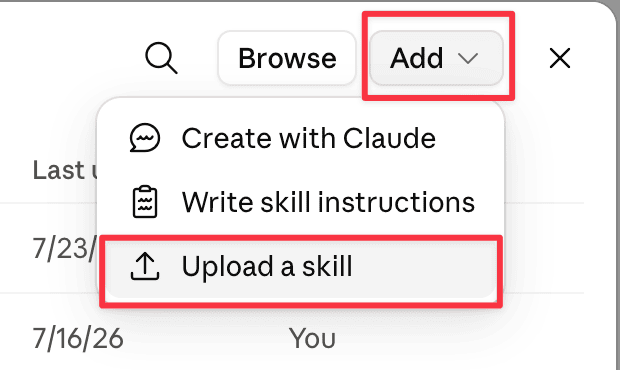
- 5
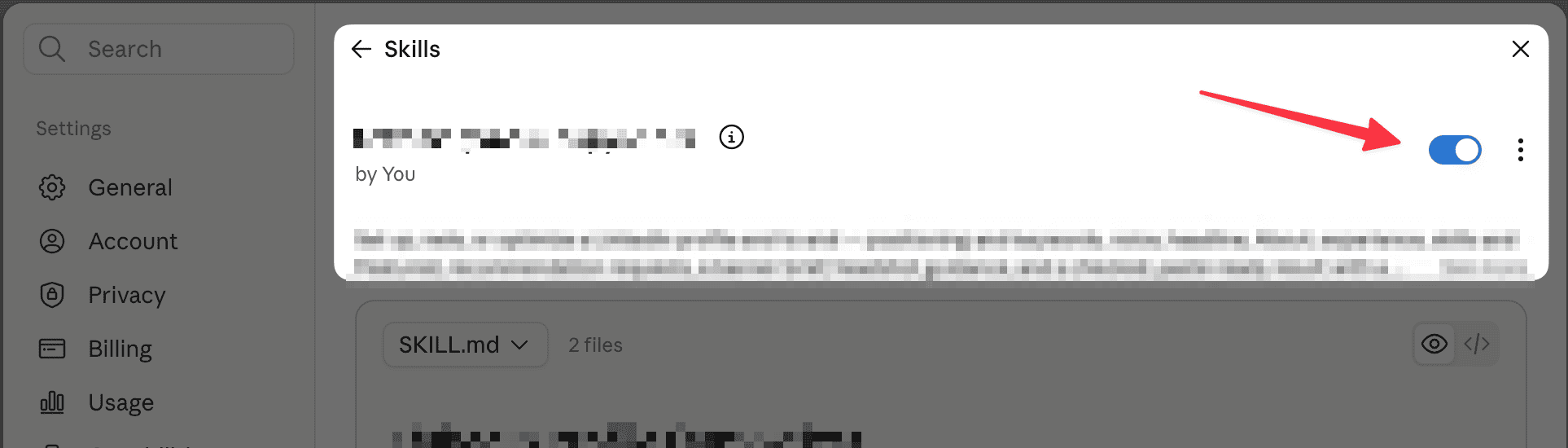
Switch it on
The skill appears in your list with a toggle next to it. Turn it on.
- 6
Check it worked
Open a new chat and ask for what you want in plain English — the examples under Run it above are a good first try. The skill starts itself when it recognizes the job.
Nothing happening, or the skill showing as unavailable? Skills only run with code execution switched on. Go back to Settings, open Capabilities, turn on Code execution and file creation, then try again.
Skills work on every Claude plan, including Free. On a Team or Enterprise account an admin can switch code execution off for everyone — if Capabilities or Skills are missing from your settings entirely, that's usually why.
5Run it
Once installed, just type
/folder-builder/folder-builder auditBoth check your folder, show what is missing, and recommend the next three pieces. Install: save the skill as `.claude/skills/folder-builder/SKILL.md` in your project, or in `~/.claude/skills/folder-builder/SKILL.md` to use it on every project.